
Widget Embed Integration
Deploy interactive AI avatar assistants directly on your websites with our embeddable widget system.
What You'll Learn
- •Configure and customize your widget through the dashboard
- •Generate and copy production-ready embed code
- •Test your widget before deployment
- •Monitor widget performance with built-in analytics
Step 1: Configure Your Widget
Access the widget configuration from your dashboard by navigating to Dashboard → Embed Code. Here you can customize every aspect of your widget's appearance and behavior.
Configuration Options
Security Settings
- • Widget Status: Enable/disable widget globally
- • Domain Whitelisting: Restrict deployment to authorized domains
- • Wildcard Support: Use patterns like *.example.com
Appearance
- • Primary Color: Customize brand colors
- • Theme: Light or dark mode
- • Position: Choose from 4 corner positions
- • Display Mode: Floating button or inline embed
Features
- • Voice Input: Enable microphone support
- • Chat History: Conversation memory
- • Auto-Expand: Open automatically on load
Avatar Selection
- • Choose which AI avatar to use
- • Video-powered responses
- • Custom avatar support
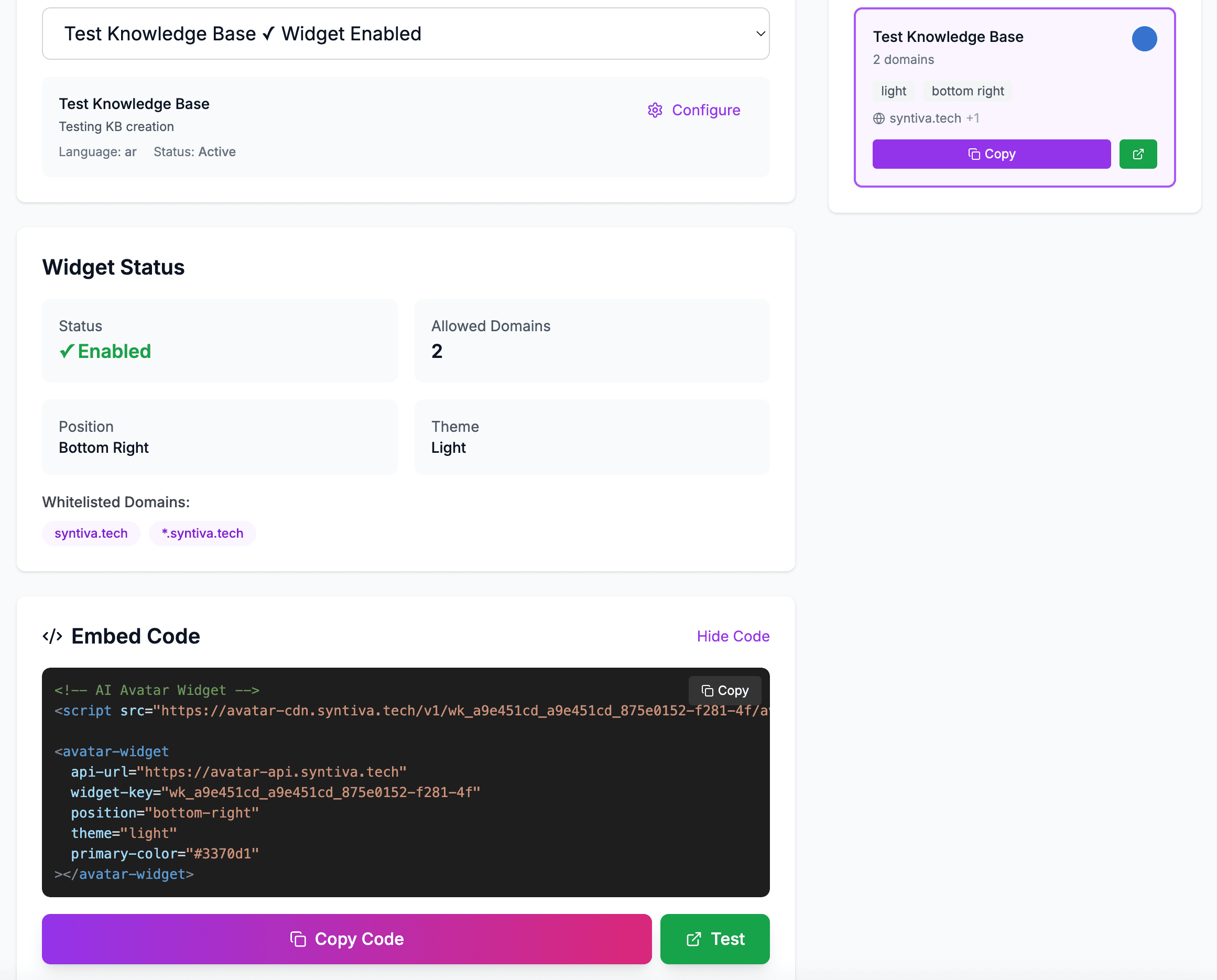
Widget configuration dashboard showing embed code generator and customization options
Step 2: Get Your Embed Code
Once you've configured your widget settings, generate the embed code with a single click. The code is syntax-highlighted and ready to copy directly into your website.
Floating Widget (Default)
<!-- Syntiva AI Avatar Widget -->
<script src="https://avatar-cdn.syntiva.tech/v1/YOUR_WIDGET_KEY/avatar-widget.iife.js"></script>

<avatar-widget
  api-url="https://avatar-api.syntiva.tech"
  widget-key="YOUR_WIDGET_KEY"
  position="bottom-right"
  theme="light"
  primary-color="#3B82F6"
></avatar-widget>
The floating widget appears as a button in the corner of your page. Click to expand the chat interface.
Inline Widget
<!-- Syntiva AI Avatar Widget (Inline Mode) -->
<script src="https://avatar-cdn.syntiva.tech/v1/YOUR_WIDGET_KEY/avatar-widget.iife.js"></script>

<avatar-widget
  api-url="https://avatar-api.syntiva.tech"
  widget-key="YOUR_WIDGET_KEY"
  display-mode="inline"
  theme="light"
  primary-color="#3B82F6"
></avatar-widget>

<style>
  avatar-widget {
    width: 100%;
    height: 600px;
    display: block;
  }
</style>
The inline widget embeds the chat interface directly into your page content. Set a specific height for the container.
Important Notes:
- • Replace
YOUR_WIDGET_KEYwith your actual widget key from the dashboard - • The widget key is safe to expose in browser code - it's designed for public use
- • Domain whitelisting provides additional security layer
- • Widget scripts are cached on CDN for optimal performance
Step 3: Test Your Widget
Before deploying to production, test your widget directly from the dashboard using the built-in preview feature.
Testing Features
Live Preview
Click the "Test Widget" button in the dashboard to open a popup window with your widget loaded and ready to test.
Responsive Testing
Resize the test window to verify the widget works correctly on different screen sizes (desktop, tablet, mobile).
Testing Checklist:
- ✓ Widget loads and displays correctly
- ✓ Chat interface opens/closes smoothly
- ✓ Voice input works (if enabled)
- ✓ Questions receive accurate responses
- ✓ Video responses play correctly (if configured)
- ✓ Widget appears in correct position
- ✓ Colors and theme match your brand
- ✓ Mobile responsive behavior works
Step 4: Monitor Performance
Track widget usage, user engagement, and performance metrics through the comprehensive analytics dashboard.
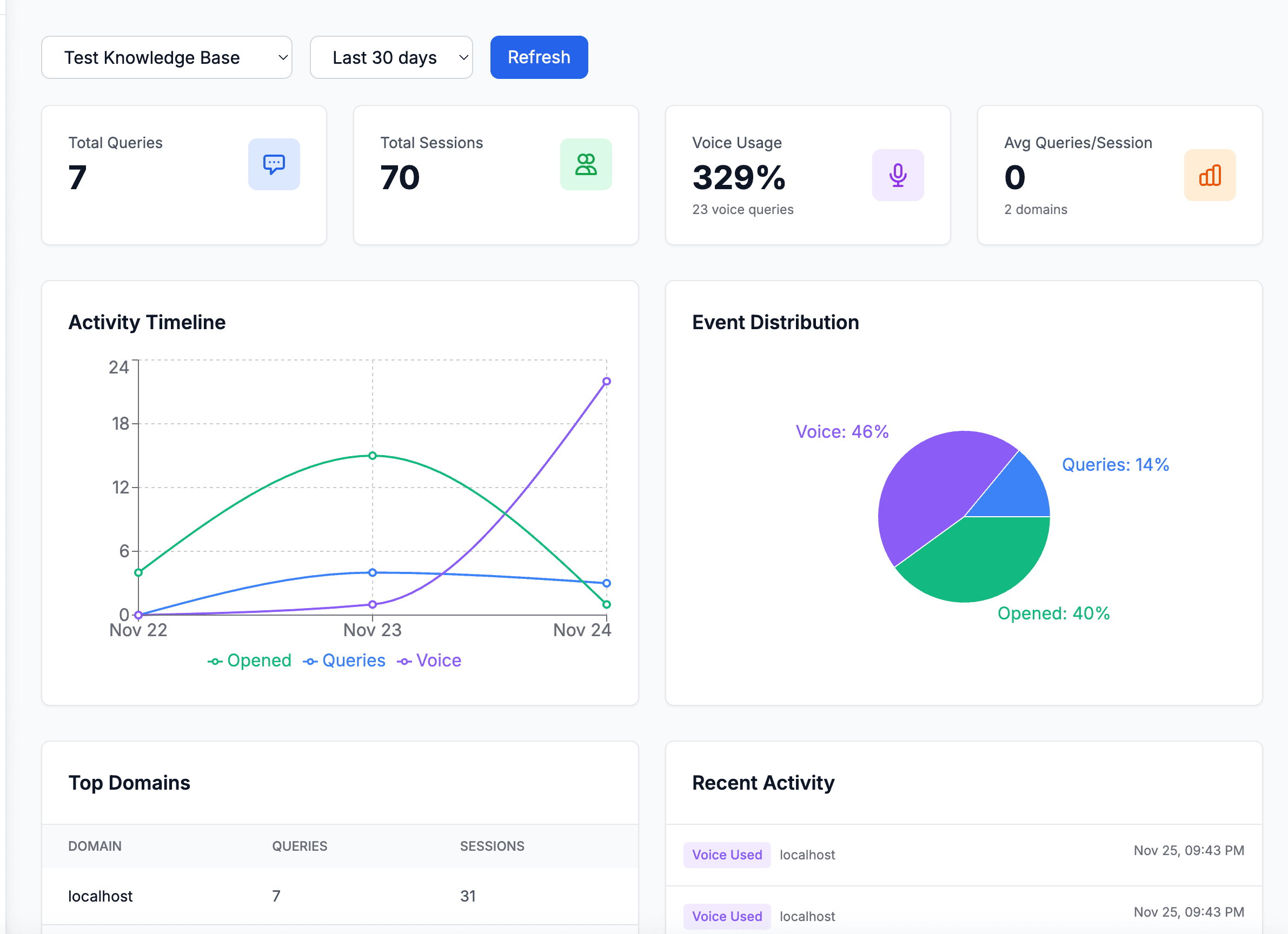
Analytics dashboard showing real-time widget performance metrics and user engagement
Available Metrics
Usage Metrics
- • Total Queries: Number of questions asked
- • Total Sessions: Unique user interactions
- • Avg Queries/Session: Engagement depth
- • Chat Opened: Widget expansion events
Advanced Insights
- • Voice Usage: Percentage of voice vs text queries
- • Top Domains: Which websites get most engagement
- • Activity Timeline: Usage patterns over time
- • Recent Activity: Real-time event stream
Visualizations
- 📊Activity Timeline: Multi-line chart tracking queries, voice usage, and chat sessions over time
- 🥧Event Distribution: Pie chart showing breakdown of interaction types
- 📈Top Domains Table: Sortable data showing highest-engagement websites
- ⚡Recent Activity Feed: Real-time stream of user queries and interactions
Advanced Configuration
Display Modes
Floating Button (Default)
A small button appears in one of the four corners of the screen. Clicking expands the full chat interface.
- • Minimal initial footprint
- • Always accessible without scrolling
- • Ideal for e-commerce and content sites
Inline Embedded
The full chat interface is embedded directly into your page content as a static element.
- • Always visible in page flow
- • Set specific container dimensions
- • Perfect for dedicated support pages
Domain Whitelisting
Secure your widget by restricting which domains can load it. This prevents unauthorized use and protects your API quotas.
example.comExact domain match - only works on exactly example.com
*.example.comWildcard - works on all subdomains (app.example.com, api.example.com, etc.)
Voice Input Configuration
Enable hands-free interaction with integrated speech-to-text powered by OpenAI Whisper.
- • Supports Arabic and English languages
- • High accuracy transcription
- • Automatic language detection
- • Works on all modern browsers
- • Requires microphone permission from user
Best Practices
🎨 Branding & Design
- • Choose colors that match your brand identity
- • Use consistent avatar across all knowledge bases
- • Test both light and dark themes
- • Ensure widget doesn't obscure important content
🔒 Security
- • Always enable domain whitelisting in production
- • Use wildcard patterns for staging/development environments
- • Monitor analytics for unusual activity
- • Regenerate widget keys if compromised
⚡ Performance
- • Widget scripts are automatically cached
- • Lazy-load widget if not immediately needed
- • Monitor analytics to optimize knowledge base content
- • Keep avatar videos under 10MB for fast loading
📊 Analytics & Optimization
- • Review analytics weekly to identify common questions
- • Add Q&A pairs for frequently asked questions
- • Monitor voice usage to gauge user preferences
- • Check domain analytics to focus on high-traffic sites
Need Help?
Our team is here to help you get the most out of your widget integration.